
Game Overview
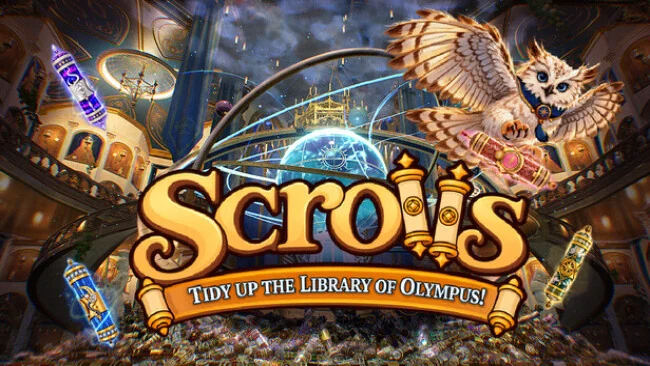
A mountain of misplaced knowledge turns a seemingly humble tidying job into a surprisingly absorbing cooperative puzzle. SCROLLS: Tidy up the Library of Olympus! casts players as divine librarians restoring an enormous archive where myths, maps, histories, and astronomical records lie in chaotic heaps. Its tone is calm, playful, and deeply satisfying, built around the pleasure of turning visual clutter into perfectly ordered shelves. Beneath the serene premise sits a genuine organizational challenge, as thousands of individually marked scrolls must find their correct homes.
Every scroll carries clues through its title, color, insignia, and Roman numeral, requiring careful inspection before it can join the right collection and take its proper numerical position. Players roam the library in first person, picking up armfuls of documents, making temporary sorting piles, placing volumes into shelves, and rearranging mistakes as patterns become clearer. Progress unlocks supernatural conveniences, including abilities that identify related scrolls, reveal destination shelves, gather a set’s missing pieces, or automatically file matching volumes. The full task spans 3,048 scrolls, 400 collections, and 24 subjects, while online co-op supports up to eight people with shared progression, making the workload either efficiently collaborative or wonderfully chaotic.
What separates it from ordinary cleaning sims is the blend of tactile object handling and deductive cataloguing: each completed shelf feels earned because players learn the library’s visual language rather than merely following markers. The handcrafted materials give different fields their own identity, so recognizing an epic poem or geographic record gradually becomes second nature. Co-op adds an appealing social layer reminiscent of the teamwork and accidental disorder of PlateUp! or Unpacking’s methodical satisfaction expanded into a shared 3D space. Patient solo players, cozy-game fans, and groups wanting a low-pressure project all find plenty to enjoy, though anyone who hates meticulous sorting may find the scale intimidating.
Screenshots
Installation
- Select the Download button at the top of this page to open UploadHaven.
- On UploadHaven, wait for any countdown, then select Free Download. Optional: UploadHaven Pro for faster downloads.
- When complete, extract the archive to a SCROLLS: Tidy up the Library of Olympus! folder using 7-Zip.
- Open the extracted folder and start the game normally.
- For errors, check Setup Guide & Troubleshooting below. Keep your security software enabled.
System Requirements
- Requires a 64-bit processor and operating system
- OS: 10, 11
- Processor: Ryzen 5 2600
- Memory: 8 GB RAM
- Graphics: GTX 2060 Desktop
- Storage: 6 GB available space
- Additional Notes: 1080p – Low/Medium Settings. Steam Deck – Low Settings 800p
Setup Guide & Troubleshooting
How do I fix missing DLL errors for SCROLLS: Tidy up the Library of Olympus!?
After extracting SCROLLS: Tidy up the Library of Olympus!, navigate to the _Redist or _CommonRedist folder inside the game directory and install DirectX, Vcredist, and any other dependencies included.
What should I do if the downloaded file is corrupted?
The full archive is 5.36 GB — make sure your download completed fully before extracting. Use 7-Zip to extract the files. If you still see a "file corrupted" error, re-download and try again.
Do I need to run the game as administrator?
Usually, no. Start the game normally from the extracted folder. If you see a permissions or save error, check that the folder is writable and follow the game's documented fix. Only grant administrator access when a trusted game's specific setup requires it.
How do I update my GPU drivers for this game?
The game won't launch — what should I try?
Check that extraction completed and your PC meets the system requirements. Note any error message before choosing a fix. If it identifies a missing runtime, install the required DirectX components or Microsoft Visual C++ Redistributable from Microsoft.
My antivirus is blocking the game — is it safe?
A warning needs to be investigated; the download source alone cannot confirm that a file is safe. Keep your security software enabled and review the detection details. Do not run or restore a flagged file unless you have verified that it is a false positive. If you are unsure, leave it quarantined.
